Tutorial
In this tutorial, we will go through a complete example using COMFOR — from input file setup to result visualization in ParaView.
You will learn how to:
- Understand the structure of a modern TOML input file.
- Run a simulation using the terminal.
- Visualize and animate results in ParaView.
Example Overview#
For this tutorial, we will use the Feuilles example, which can be downloaded from the COMFOR Download page.
After extracting the archive, the folder structure is:
examples/Feuilles/
 ├── Feuilles.toml       # Modern TOML input file
 ├── Feuilles.txt        # Old Fembic input file
 └── Results_Feuilles/   # Output directory (created after running COMFOR)
The Input File#
A COMFOR input file defines all the parameters needed for the simulation. While we maintain support for the legacy format, we strongly recommend using TOML for its readability and modularity.
Info
The TOML format allows for a clear separation between geometric sources (mesh) and physical entities (part).
[control]
run_from = 0.0
run_to = 15.0

[[output]]
type = "VTU"
frequency = 0.1
directory = "Results_Feuilles"

[material.LeafMaterial]
type = "HYPERELASTIC"
density = 0.00001
potential = "OGDEN"
mu = [ -0.09, 13.9, -0.20 ]
alpha = [ -13.7, 0.10, 5.06 ]

[mesh.LeafMesh]
type = "INLINE"
nodes = [
    [1, 0.0, 0.0, 0.0],
    [2, 1.0, 1.0, 0.0],
    [3, 2.0, 2.0, 0.0]
]
elements = [
    [1, "MEMBRANE_3", 1, 2, 3]
]

[part.MainLeaf]
mesh = "LeafMesh"
material = "LeafMaterial"
thickness = 1.0
Understanding the Blocks#
Each section defines a pillar of the simulation:
[control]— Defines the time range and global integration settings.[[output]]— Configures where and how often results (.vtu) are saved.[material]— Defines the physical behavior (e.g., Ogden hyperelastic model).[mesh]&[part]— Geometry definition and physical instantiation.
Warning
In the Fembic format, nodes and elements are defined directly, and physical properties (material, thickness) are assigned within the element block.
CONTROL
RUN FROM 0.0 TO 15.0

OUTPUT
TYPE = VTU FREQUENCY = 0.1 DIRECTORY = Results_Feuilles

MATERIALS TYPE HYPERELASTIC
LeafMaterial RHO = 0.00001 TYPE = OGDEN MU = [ -0.09, 13.9, -0.20 ] ALPHA = [ -13.7, 0.10, 5.06 ]

NODES
1   X = 0.0  Y = 0.0  Z = 0.0
2   X = 1.0  Y = 1.0  Z = 0.0
3   X = 2.0  Y = 2.0  Z = 0.0

ELEMENTS TYPE MEMBRANE_3
1   NODES = [1, 2, 3] MATERIAL = LeafMaterial T = 1.0
Understanding the Blocks#
Each section defines a pillar of the simulation:
CONTROL— defines simulation time and output frequencyMATERIAL— defines material propertiesNODESandELEMENTS— define the mesh and connectivityCONSTRAINTandLOAD— apply boundary conditions and loads
For a full description of all available parameters, see the Configuration Reference.
Running the Simulation#
The most efficient way to run COMFOR is via the terminal (Command Prompt on Windows, Terminal on macOS/Linux).
- Open a terminal and navigate to your example folder.
- Run COMFOR by passing the input file as an argument:
Tip
If you run comfor without any arguments, the program will start and interactively ask you to type the path to your input file.
During execution, COMFOR displays real-time statistics:
=================================
Elapsed time: 0.23s
Current time: 5.0
Internal energy: 3.24
Kinetic energy: 0.12
=================================
Once finished, a Results_Feuilles/ folder will appear containing .vtu files.
Visualizing Results in ParaView#
To visualize the deformation and movement:
- Launch ParaView.
- Go to File → Open and select the
Results_Feuilles/directory. - Select the group of
.vtufiles (often shown asFeuilles_..vtu). - Click Apply.
If nothing appears, make sure the “eye” icon next to the dataset is enabled.
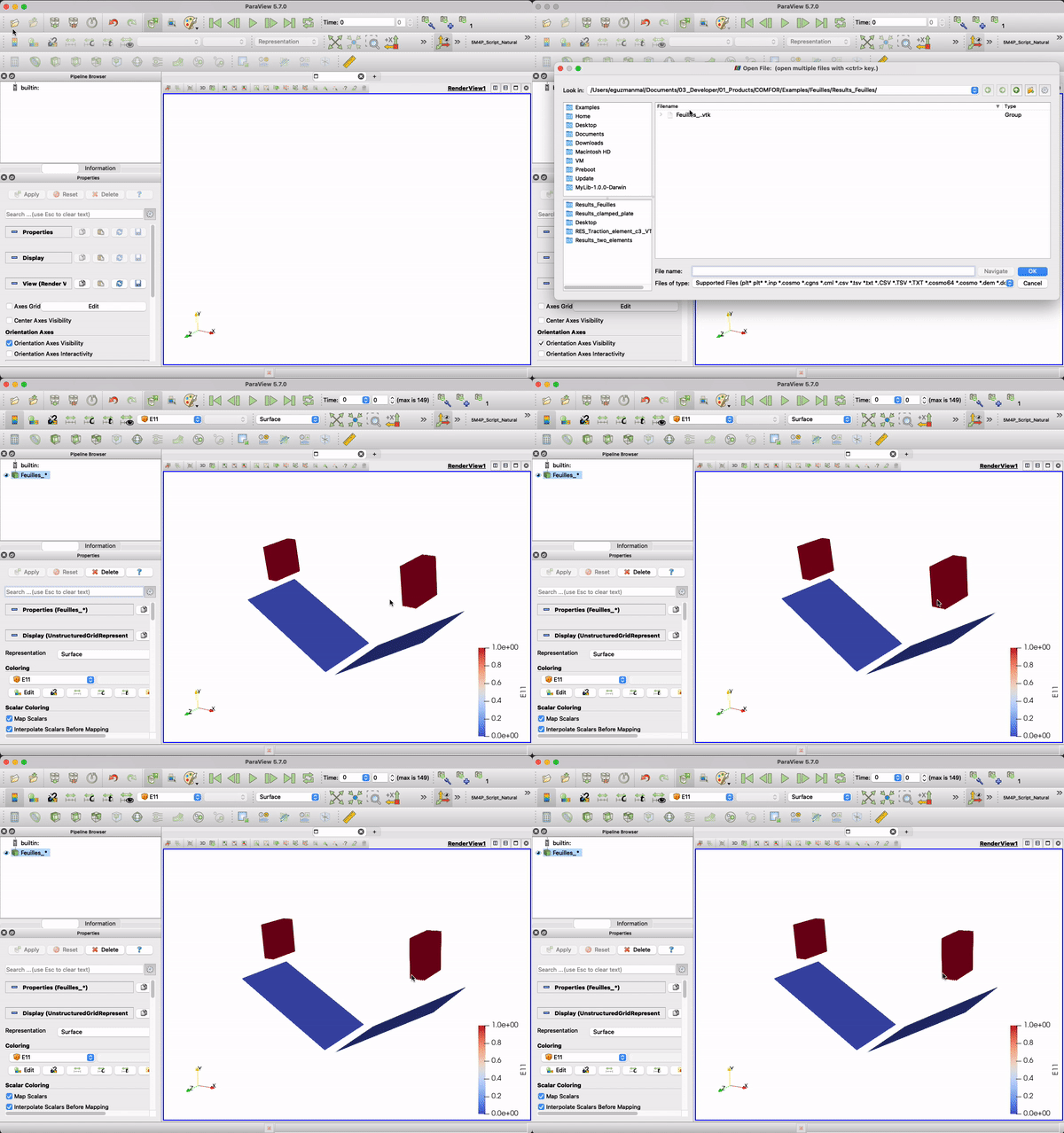
Use the Play button (VCR controls) to watch the animation. You can change the displayed field (e.g., Displacement, Stress) using the dropdown menu in the top toolbar.
Next Steps#
Congratulations! You have successfully run a COMFOR simulation.
- Explore the Overview Documentation.
- Learn how to configure an Input File.